
Frequently Asked Questions
You may apply for an ABM Card for Jamaican currency accounts only. Simply visit the nearest VMBS branch in Jamaica with valid government identification. Your Member record must be up to date.
Not currently, however our cards can be used free of charge within Jamaica at all POS and Multi-Link ABMs.
Opening a new account is easy. You have the following options:
- You can visit a branch in Jamaica.
- Email / Mail Documents.
- Visit the New York Representative Office by booking an appointment.
- Visit the Florida Representative Office by booking an appointment.
- Visit one of the three Representative Offices in England by booking an appointment .
- Birmingham
- Tottenham
- Brixton
- Valid Government Issued Identification – Passport, Driver’s License, Voter Identification card, State Identification, Citizenship Card.
- Proof of Income
- TRN, SSN, NI card, SIN.
- Proof of Address – Utility Bill, Bank Statement, Credit Card Statement (which should be 6 months old or less), Address Verification Form for Jamaican residents.
All you have to do is download and complete these forms:
- New Account Application Form
- Member Information Form
- Signature Card
- Reference Form for Overseas Members
- Electronic Communication Indemnity Form
If you are a US Citizen or Permanent Resident, you’ll also need to complete:
- W-2 form (for Jamaican residents who work overseas.)
- W-9 form (for US citizens, those who work and reside in the US permanently or persons with US residency card.)
Ensure your signature is on all the documents notarized. Mail the documents along with your personal cheque or money order made payable to VMBS to:
VM Mutual Building Society
8 – 10 Duke Street, P.O. Box 90
Kingston, Jamaica
JMD, CAD, USD, GBP
Please see the list of main accounts. From time-to-time other new accounts may become available, you can see our offerings Here.
No, we do not have shareholders. We are a mutual organization and we are owned by our Members and governed by our Board of Directors.
Yes. Our dynamic team of financial experts will be able to help you after complete this form – Financial Service Specialists.
To add someone to an existing VM account, download our Addition of Name Request form. If the person you wish to add is not an existing VMBS Member, download the following forms for their completion:
- Member Information Form
- Reference Form (local or overseas members)
- Signature Card
The complete list of documents needed may be found under question ‘What documents are needed to open a new VMBS account’ above. Once the documents have been completed, submit to your nearest VMBS Branch.
**Existing members with Electronic Indemnity on file may scan and email documents to manager@myvmgroup.com
The most likely reasons could be:
- Your member record needs to be updated.
- Your account is inactive and is in a restricted state.
In order to update the personal information, complete the following forms:
- Member Information
- Reference (Local or Overseas members)
- Signature Card
Once you have completed them, submit to the nearest VMBS Branch or email the following documents to manager@myvmroup.com:
- Valid Identification – Passport, Driver’s License, Voter Identification card, State Identification, Citizenship Card
- TRN, SSN, NI card, SIN
- Proof of Address – Utility Bill, Bank Statement, Credit Card Statement (which should be 6 months old or less), Address Verification Form for Jamaican residents
- Two (2) References completed on your behalf by any two of the persons listed at the bottom of the Reference Form (Can be downloaded for physical completion or referees can be contacted via telephone by our VMBS Branch Representative)
If you are overseas and cannot visit a Representative Office, signatures on the forms must be notarized and sent to:
VM Mutual Building Society
8 – 10 Duke Street, P.O. Box 90
Kingston, Jamaica
Removing a name from an account requires that you close the existing account and open a new account in the name(s) you desire. Please see Question ‘How do I open an account as a new member of VMBS?’.
If you have not used your account in over 18 Months, it will go into a restricted state. To reactivate the account, you can contact us by telephone, email, or by visiting the nearest branch/ representative office.
You may be required to update your member records and will be required to do a transaction on the account to achieve full activation. To activate your account, contact us.
In the event that you need to close your account, you should visit the nearest VMBS branch in Jamaica or the Representative Office in the USA or UK and complete the Withdrawal Request Form
Members who wish to submit the form by email can submit same at manager@myvmgoup.com. These Members must ensure they have previously submitted a completed Electronic Indemnity form to the nearest branch.
Your member record must be up to date.
To make changes to an account following the death of an account holder, you need to submit the original or certified copy of the death certificate to the nearest VMBS branch or Representative Office in person or via mail.
**The death certificate must be submitted before someone else can be added to the account.
VMBS can only legally release Funeral Expenses from an account where the sole account holder is deceased. To obtain additional funds or close the account, the named Executor or Administrator of the deceased’s Estate must submit the original or a certified copy of:
- The Probate where the deceased left a Will
- The Letters of Administration where the deceased did not leave a Will
The company’s payroll system allows them to make salary uploads directly to employees’ local bank accounts by choosing from a list of Local Financial Institutions. The employers will now be able to select VMBS from the list of local banks and make the payments to the employees VMBS Accounts.
As an employee, complete the Salary Deduction form and submit it to your employer. They will use this as authorization to submit your salary to your VMBS account.
The Withdrawal Request Form has completion guidelines on its second page. Click here to view.
ACH stands for Automated Clearing House. An ACH Transfer is a secure and cost-effective way to move money electronically between local banks. ACH transfers are usually more cost effective and can be more convenient than writing cheques or paying with a credit or debit
Card.
The difference between ACH and RTGS is that in the case of ACH, the settlement of payments is done in batches, while in the case of RTGS, real-time payment is handled individually. Sending money via the ACH is more cost-effective than RTGS, while the RTGS is the fastest way of transferring money.
ACH Transfers to VMBS accounts are delivered daily from other commercial banks and are processed by VMBS at approximately 9:30 am and 2:30 pm each day. Once the funds are posted to the accounts, Members will have immediate access to the funds.
VMBS account holders will not incur a fee for receiving ACH payments, however the initiator of the transactions would be charged by the sending institution.
- Local Transfers can be sent via the ACH network for amounts up to J$1M. Transfers that exceed J$1M should be sent using RTGS.
- It should be noted that if ‘ACH’ is chosen at the sending institution for transactions of J$1M and above, the sending institution will charge the sender penalty of J$5,000.00 per transaction as stipulated by the BOJ policy.
Senders will require the following information to initiate ACH transfers to VMBS:
- Beneficiary Bank: VMB
- BIC: VMBSJMKN
- Beneficiary account: (Member’s account #)
- Beneficiary account name: (Member’s name on the account)
ACH will now make it easier for VMBS to receive salaries and salary deductions on behalf of Members. Employers and payroll organisations will now see VMBS listed among the financial institutions to which they can directly send their staff members’ payroll funds to VMBS Accounts.
VMBS can now receive Online Transfers from all local financial institutions that use ACH Transfers including Scotiabank. Once online users select Local Transfers via ACH on their banks’ online platform, VMBS is now listed among the list of banks available for the user to select.
VMBS will introduce ACH in two (2) phases. Initially Members will be able to receive ACH transfers to their VMBS Accounts sent from other banks. In a subsequent phase, Members will later be able to initiate ACH transfers to other financial institutions.
- Sign into your online account
- Create a beneficiary with the beneficiary details of the account holder
- Insert the details of the beneficiary account number
- Select the “VM Mutual” and select your branch
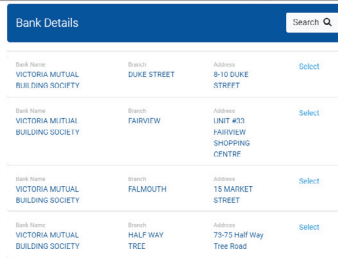
Scotiabank’s online platform currently displays a default of approximately ten (10) branches, but the others are in fact there once you use the search field by street address or town:
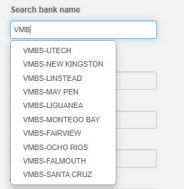
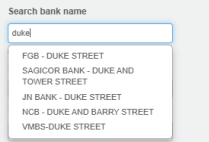
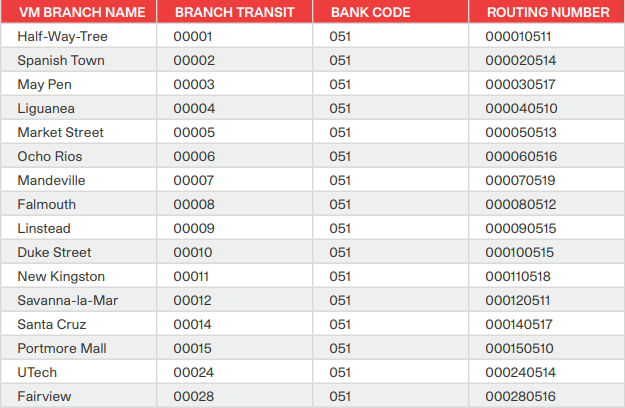
Please see below for the list of VM Branches and their ABA/Routing Numbers. If you are not sure of the branch number associated with the account, you may select the Duke Street Branch as your default. Payments will be processed to Members accounts twice daily at 9:30 am and 2:30 pm.
When you take a commercial mortgage from VM Building Society, you get access to a competitive interest rate, low closing fees, low monthly payment, fast processing time.
To apply for a commercial mortgage from VM Building Society, please visit our website to schedule an appointment, call our Member Engagement Centre or visit our Mortgage and Lending Centre.
First Step: Complete and submit the documents required.
Second Step: Provide additional support documents requested.
Third Step: Review of documentation, status of approval and disbursement where applicable.
At VM Building Society, we offer commercial equity loans to assist with working capital, purchase, or refinancing of commercial property.
The fees include processing fees, insurance charges, registration fee, stamp duty and attorney fee.
Commercial mortgages at VM have a repayment period of up to 15 years.
No, you are required to make principal & interest payments.
Not currently, however, we are developing the cards and it will be rolled out shortly.
Not currently, however, we are developing the cards and it will be rolled out shortly.
We are currently in the process of developing an international debit card. Members will be provided with more information closer to the launch date.
Members who wish to send instructions to VMBS by email must have an Electronic Communication Indemnity form in place. You may visit our website and download the form, complete and submit at the nearest branch or representative office. Once this has been done, you may now send account instructions to manager@myvmgroup.com.
We welcome your feedback as we seek to serve you better. To give your feedback now, click here or email us at manager@myvmgroup.com.
VM remains committed to charging our Members ‘No or Low Fees’ on transactions. Some transactions attract no cost at all. For a full list of transactions and the related cost, (Click here for fee guide)
Your transaction is settled upon receipt of your funding
Yes, we can settle your liability payments at any international or local bank account of your choice.
Our fees are currently the lowest in the market. We apply reduced charges for RTGS and wire transactions.
Yes, we accommodate standing order requests for settlement from our counter parties.
We trade in USD, GBP and CAD.
Yes, we invite you to negotiate with any of our Treasury Team members or Branch Representatives.
VM does offer unsecured personal loans. (Click to learn more about personal loans)
VM does offer auto loans. (Click here to learn more about our auto loans)
Yes. We provide cash secured loans that allow Members to access up to 90% of their savings/investments for a maximum period of 5 years. To start the process, please download our Loan Promissory Note Form, complete and submit to the nearest VMBS Branch or email to manager@myvmgroup.com.
*Subject to product terms and conditions*
Yes. You can pre-pay up to three months.
Yes, once the monthly payment is satisfied. There is also no penalty for early closure of the loan.
You can find all VM office locations here.
To check if you qualify for a VM mortgage, submit the following documents and information to our Mortgage Centre website:
- The price/value of the property
- The deposit/down payment amount
- Income/ employment information for eg: Payslips for the last three (3) months or Self-employed information
- Completed Income & Expenditure Form
- Credit Report
The process of removing a name from your mortgage account is a legal one referred to as a Transfer Subject to Mortgage. Kindly make an appointment with a Financial Services Specialist here for further information.
Both Peril and GMPI Insurance premiums become payable on February 1 each year. You may make one-off or multiple lump sum payments towards your Peril Insurance or GMPI by visiting the VMBS branch most convenient to you. If you have an Electronic Communication Indemnity in place, download and complete our Withdrawal Request Form and email to manager@myvmgroup.com and the payments would be processed electronically on your behalf.
Notices or information related to the renewal insurances are sent in advance of the renewal period. To ensure you receive the information please ensure we have your updated email and contact information. You may also monitor the information by using the mobile app (VM Express).
If the insurance is not done this way, then it will be charged monthly which will result in an increase in the monthly mortgage payment.
Yes. You may pay up to $500,000 per year to the principal of your mortgage without notice. To make a payment in excess of $500,000, you must give at least three months’ notice of your intention to make the lump sum payment. Failure to give notice will result in a penalty of three months’ interest. For additional details, please contact our Member Engagement Center:
Tel: (876) 754-VMBS (8627)
Toll Free (from Jamaica): 1-888-YES-VMBS (937-8627)
When you have repaid your mortgage, VMBS’ interest in your property must be removed. The process of removing VMBS’ interest is referred to as Discharge of Mortgage. You may choose one of the following options to complete the Discharge of Mortgage:
- Request in writing that VMBS discharges the mortgage in-house, and pay the relevant fee
- Request in writing that your Title and the Discharge of Mortgage be sent to an attorney of your choice for the discharge process to be completed
- Collect your Title and the Discharge of Mortgage at the nearest branch office and complete the process by visiting the Titles Office in Jamaica
All mortgagees will be required to sign the requests mentioned as well as collect the Title.
In order to close out your mortgage account before it matures, you should complete our Notice Payment Form, giving three months’ notice of your intention to pay off your mortgage. Failure to give notice will result in a penalty of three months’ interest.
For details on the mortgage application process, please view our Mortgage Loan Application Checklist . If you are ready to commence the mortgage application process, click here.
As at October 2026, we have streamlined the platform to focus on convenience, speed, and safety. Key highlights include:
- Easier Navigation: Jump between your portfolio, transfers, and saved payees in a single tap using our new bottom menu (Mobile only).
- Password Toggle: Use the eye icon in the Password field at login to verify your password to avoid being locked out of your account.
- Secure Authorization: Register your mobile device to enable in-app push notifications for approving your transactions.
- Personalized Account Management: You can give your accounts personalized nicknames (e.g., “Emergency Fund”) and add tags to bills (e.g., “Mom’s Utility”) for easy tracking.
- Repeat A Payment: Instantly repeat any past transaction.
- In-App Messaging Support: Send secure messages, ask questions, or upload screenshots directly to our support team using the upgraded inbox feature on your dashboard.
- Beneficiary Address Details: Enter Street Address, City/Town and Country information in dedicated fields for your international wires to avoid rejections/failures.
These updates stem from feedback from members like you, introducing stronger multi-factor security to safeguard your hard-earned money, faster transaction options to save you time, and flexible personalization features.
Yes, absolutely. You can access VM Express Online through any secure desktop web browser. While mobile app users will transition to secure in-app push notifications for approvals, browser sessions will continue to secure transactions using One-Time Passwords (OTPs) sent to your mobile phone.
Device Registration links your VM Express profile to up to two (2) secure physical mobile devices. This adds a critical layer of defense, ensuring that even if someone guesses your password, they cannot access your account or transfer funds without physical possession of your registered device.
- Log into the updated VM Express app on your primary phone.
- Follow the instruction on screen and when prompted, request a secure activation code (OTP) via SMS or email.
- Enter the code in the app and choose to enable biometric login (Face ID/Fingerprint) for seamless future access.
- Your device is now registered as your primary trusted device.
For Apple, iOS 17.x or newer, including iPhone XS, XR, or newer. For Android, Android 10 or newer, including most devices released since late 2019. To check compatibility, follow the steps for your device below:
- For iPhone Users:
- Open your phone’s Settings.
- Tap General ➔
- Look for iOS Version (or Software Version). If it shows 17.0 or higher, your phone is fully compatible.
- For Android Users:
- Open your phone’s Settings.
- Scroll down and tap About Phone (or System / About Device).
- Tap Software Information to see your Android Version. If it shows 10 or higher, your phone is fully compatible.
- For iPhone Users:
You are only allowed to pair two (2) devices to your account profile at any given time.
If your phone is lost or stolen, please contact our Member Engagement Centre at 888-YES-VMBS (888-937-8627).
All your previously saved templates are still available and accessible, but you can no longer create new ones. Use the Repeat A Payment function to quickly redo past transactions.[
Transferring funds internally to another VM member is instant and secure:
- Select Send Money (or tap Pay/Transfer on the mobile bottom menu).
- Enter the payee’s VMBS Account Number.
- Confirm the Match: The system will automatically detect the VMBS account and partially display the name on your screen. Verify this name matches your recipient to ensure your money goes to the right person.
- Enter the amount and complete the transfer.
To send money to other local commercial banks, follow these quick steps:
- Select Send Money on your dashboard or tap Pay/Transfer on the mobile bottom menu and click To Other Accounts.
- Enter the beneficiary’s account number.
- Select the beneficiary’s Financial Institution and Branch from the list.
- Select Processing Method: ACH or RTGS
Confirm details and click Submit to process your transfer.
Sending money overseas is straightforward and conforms to international safety standards:
- Select Payments/Transfer and choose To VMBS, local or international banks.
- Enter the payee’s account number.
- Click the Sending money outside the country? button.
- Enter the SWIFT code or Bank Name and select the destination bank branch.
- Enter the Beneficiary Details (ensuring you meet the physical address requirements below), Reason of Transfer and the Purpose of Payment.
Review your entries and click Submit.
When sending international wire transfers you must provide the Beneficiary’s physical address, including Street Address (Address Line 1), City/Town and Country information. P.O. Box addresses are NOT accepted.
- From your Dashboard, click Send Money on your desired source Account (e.g. Savings).
- Enter the Beneficiary details.
- Under the payment details section, toggle the Make Recurring
- Select the transaction Date, frequency (daily or monthly) and the Until Date
- Enter Reason of Transfer e.g. Bill Payment
- Review and tap Submit to confirm.
- Navigate to My Portfolio.
- Select the account on which the payment was set up.
- Click on Active Transfers.
- Select the payment and tap Delete to stop future payments.
OR
- Navigate to Payments/Transfers, click the gear icon beside ‘More Options’.
- Look for Active Transfers.
- Find the transaction you wish to modify or cancel.
- Hover over the transaction and the pencil icon and trash can icon will appear.
- Select the pencil if you wish to modify or the trash can if you wish to delete.
- Submit/Confirm Payment modification.
The “Proceed” button is designed to remain inactive until all security and processing requirements are met. If it is greyed out, please check the following:
- Mandatory Fields: Ensure that Address Line 1 (Street Address), Beneficiary City/Town, and Beneficiary Country are all filled out.
- Daily Transaction Limits: Check that the transfer amount does not exceed your daily transaction limit.
- Sufficient Funds: Verify that your source account has a sufficient balance to cover both the transfer amount and any associated transaction fees.
Transfer Type | Processing Timeline / Cut-off |
Internal VM-to-VM Transfers | Processed instantly, 24/7. |
Local Bank ACH (Standard) | Submitted before 3:00 PM: same-day. |
Local Bank RTGS (Real-Time) | Submitted before 1:50 PM on business days: processed within 2 hours. |
International Wire Transfers | Processed within 24 to 48 business hours, subject to receiving bank timelines. |
Transfers to BNS require this format: “5-digit branch code + 000 + payee account number”. For example, if branch is 00123 and account is 123456, it should be entered as 00123000123456.
- Click on My Portfolio then tap the specific account to open its details page.
- Scroll to view your recent transaction list.
- To find older transactions, you can click Search Transactions to search by date range, transaction type, or amount.
- Tap the Download icon at the top of the history list to export your statement as a PDF or CSV file.
Contact VMBS immediately through the Member Engagement Centre if you clicked a suspicious link, downloaded an unknown app, shared your OTP, password, PIN, card details, or personal information, or notice an unauthorized transaction. Do not continue communicating with the sender or caller.
We are here to support you every step of the way:
- In-App Support: Click the message icon on your app dashboard to chat securely with a support representative.
- By Phone: Call our Member Engagement Centre (MEC)
- Toll free from the U.S.A. and Canada at 1866-967-8627
- Toll free from the U.K. at 0-800-068-8627
- Toll Free from the Caribbean 1-844-562-0552
- Toll free from Jamaica at 888-937-8627 or directly at 876-754-8627
- Monday – Friday 7:00 a.m. – 8:00 p.m., Saturday 10:00 a.m. – 6:00 p.m. and Sunday 10:00 a.m. – 3:00 p.m.
- By Email: Reach out to us at manager@myvmgroup.com.
- In Person: Visit any of our branches islandwide to speak with a VM Member Service Representative.
To access VMBS Express Online Banking, select the icon at the top right-hand corner of our website. Proceed to sign in or register on the application page that is launched. For assistance, please contact our Member Engagement Team toll free at 1-888-967-8627.
Our online registration process has improved for faster access to internet banking. For smooth processing however, we need to have current personal details on file for you. Outdated information will result in delays with processing your online application request.
Yes. Register for online banking and access this feature under the ‘Transfer Funds’ tab.
We are currently in the process of updating our online banking service to facilitate access to business accounts. We will keep our Members updated on any progress.
You may register for online banking and view your account activity online. To request a statement, send a request to manager@myvmgroup.com, chat with us online, or visit the nearest branch location.
Yes. You are able to send funds from other banks to VMBS using the ACH platform.
REGISTRATION AND PASSWORD
- To register for VM Express Online, you first need an active VM Business Operating Account.
- Please submit a completed Electronic Communication Indemnity Form to your VMBS representative in branch.
- Please ensure your business account is updated with your mobile phone number and current email address.
- Visit our VM Express Online page on our website myvmonline.vmbs.com and click “Business Account Registration”.
- Log-in to VM Express Online
- Under ‘Self Management’, click ‘Change Password’
- Fill in the required fields
- Enter the verification code sent to your mobile phone and submit
TRANSFERS
- Log into VM Express Online portal and select Payments and Transfers
- Select Transfers and Payments and click the drop-down arrow beside “Select Payment Type”
- Select Local Transfers and enter the recipient’s bank name
- Enter recipient’s bank account number and the transfer amount.
- Select reason for payment then press Submit
- Enter the One-time password (OTP) code sent via SMS text to your mobile phone and confirm payment. Multiple authorisation results will display. OR Select Approve on the VMBS Token App
- Log into VM Express Online and select Payments and Transfers, then select Transfers and Payments
- Click drop down arrow beside Select Payment Type and select International Transfers.
- Enter recipient account number, the beneficiary’s name and address
- Enter the recipient bank SWIFT code and the transfer amount
- Select reason for payment then press Submit
- Enter the One-time password (OTP) code sent via SMS text to your mobile phone and confirm payment. Multiple authorisation results will display.
- For multiple user profile, Authorizer/approver will approve log in and approve transaction on his/her profile using OTP of VMBS Token App
BILL PAYMENTS
- Log into VM Express Online, select Payments and Transfers, then select Transfers and Payments
- Click drop down arrow beside Select Payment Type and select Bill Payments
- Choose Biller and enter the payment amount.
- Enter bill payment account number and click Submit
- Enter the One-time password (OTP) code sent via SMS text to your mobile phone. Confirm transfer. Multiple authorisation results will display.
- For multiple user profile, Authorizer/approver will approve log in and approve transaction on his/her profile using OTP of VMBS Token App
Once you submit your bill payment, the funds will be instantly debited from your account. Depending on the bill payment company’s processing policies, the payment may take up to five days to process.p
To be able to pay a bill, your payee must be an institution that subscribes to VM’s bill payment service. This list of companies continues to grow. We also accept suggestions for new billers through our Member Engagement Centre.
All payments and transfers can be made in one go with VM Express Online. That is, there is no need to create a biller/beneficiary before doing any transactions. Simply fill in the required payee/biller payment fields and submit! Once the payment is completed, you can save it as a template for future use.
There are no charges to our Members for online bill payments. VMBS does however reserve the right to make adjustments to pricing, of which you would be notified in advance.
- Log in to VM Express Online and select My Money.
- Select List Wire Transfers. Wire transfers sent to Local or Overseas banks will display.
- Click the spyglass to view wire details.
- Click the down arrow to download the payment confirmation.
- Log in to VM Express Online and select Self-Management
- Click Manage Beneficiaries Group then click + New Group and enter Group Name
- Click the beneficiary’s name and drag and drop beneficiaries into the box on the right to form the group
- Click Create Beneficiaries’ Group
- Enter the One-time password (OTP) code sent via SMS text to your mobile phone and click Confirm
TRANSACTION APPROVAL & USER MANAGEMENT
- Log into VM Express Online, look to the right of the page for Pending Transactions
- Select View Pending Transactions and the details of the pending transaction will display. Click in the check box to the left
- If there are multiple transactions click, Select All to the bottom left of the list. A tick will appear in all the check boxes. Click the Approve button.
- Enter the One-time password (OTP) code sent via SMS text to your mobile phone. Confirm transfer(s). Multiple authorisation results will display
- It is important to note that two “A” approvers or two “B” approvers cannot authorise the same transaction. Combinations of “A” & “B” or “A” & “I” or “B” and “I” can authorise transactions.
- You have the option to cancel, view or edit the transfer using the icons to the right of each transaction
- Log in to VM Express Online, select Self-Management. Then, select User Management
- Select +New User. Enter preferred username using all lowercase letters minimum 8 characters and a number.
- Enter email address, mobile number in the format +1 {area code} – {mobile number}. Then enter First Name and Last Name.
- Check the appropriate input and or authorise transaction level. Check all boxes to select the transaction limits.
- Select Create New User button. You will get a prompt indicating User is created successfully. User will receive username via email and default password via text message.
- Select Assign Accounts button to assign the accounts the user can access. Check the boxes for each account to be assigned then click Submit
- Review the assign accounts verify screen and click Confirm. Accounts are successfully assigned.
- Click Transaction Management button to assign transaction the user can execute. Check the box beside Transaction Type to automatically select all transactions in the list then click Submit.
- Review the assign transactions verify screen and click Confirm. Transactions are successfully assigned.
- Click Self-Management. Select Manage Signature Matrices to assign the approval levels to each user.
- Click + Create Signature Matrix. Click the drop-down arrow to select a transaction type. The first user will display.
- Click the drop-down arrow in the Signature Column. Select approver type A, B or I (the I approver can both initiate and approve transactions).
- Click Add Row. A second row will display
- Click the drop-down arrow under Authorizer Name and select the second user
- Click the drop-down arrow in the Signature Colum
- Select approver type “A,” “B” or “I.” (the “I” approver can both initiate and approve transactions). It is important to note that two “A” approvers or 2 “B” approvers cannot authorise the same transaction. Combinations of “A” & “B” or “A” & “I” or “B” and “I” can authorise transactions.
- Log in to VM Express Online and click your Account Number. Transactions for the last month will display.
- To view transactions for a longer period, click Show Filters located to the left of the page. This allows you to enter the date range of transactions you wish to view. The maximum allowable date range is one year at a time. Once the date range has been entered click Apply Filters.
- Scroll down to view the requested transactions. The option to download as PDF, Excel, PDF or CSV will display.
GENERAL
- Log in to VM Express Online and select Self-Management
- Click Manage Beneficiaries
- Click the drop-down arrow to select the Beneficiary Type
- Enter Beneficiary Account Number and Beneficiary Alias. Click Submit.
- Enter the One-time password (OTP) code sent via SMS text to your mobile phone and confirm.
VM Building Society offers interest bearing operating accounts where businesses can earn interest on their daily cash balances and revenues. We offer three types of business operating accounts:
Business Growth Plan
- For Self-employed and Sole Traders with total annual turnover of <$15M
- Minimum account balance – J$10,000
Business Maximizer Plan
- For Micro, Small and Medium Enterprises with total annual turnover of between $15M and $425M
- Minimum account balance – J$20,000 or US$100
Business Premium Plan
- For Corporations with total annual turnover of >$425M
- Minimum account balance – J$20,000 or US$100
VMBS offers business accounts in JMD, USD and CAD.
Yes, you may open a Certificate of Deposit business account with the currency JMD, USD or CAD.
The business must be duly registered with the Registrar of Companies. All signing officers or business owners must provide and complete KYC requirements.
The documents required to open a business operating account are based on the type of registered business. Please note the listing below for required documents:
In order to wire funds to someone overseas, register for online banking and use the International Wire Transfer option under the ‘Transfer Funds’ tab. This will allow you to transfer foreign exchange to an overseas bank. Members who have an Electronic Communication Indemnity in place may download the Withdrawal Request form, complete and submit to manager@myvmgroup.com. For further assistance, please contact our Member Engagement Team toll free at 1-888-967-8627.
You may also visit a branch and complete the form. Click here to see Wire transfer fee guide for related charges.
Members with bank accounts in the UK may make deposits via (i) wire transfer, (ii) SWIFT payment, or (iii) by visiting your nearest bank and requesting a transfer of funds to your VMBS account
Where your account is only with VM, you may use our Remittance partners. They offer direct to bank services so the funds can be deposited to your account at VMBS.
If you require a third party to collect the cash, you may use MoneyGram or remittance partners. Visit your VM information Desk or refer to our Wire Transfer/Sending Funds from Overseas (US, UK and CANADA) flyers for further details.
Our online banking facility may be used to send and receive funds. You may also download the Withdrawal Request form, complete and submit to manager@myvmgroup.com. For further assistance, please contact our Member Engagement Team toll free at 1-888-967-8627.
As per the latest international banking guidelines, funding In Jamaica must be done electronically. There are several options including wire transfers, SWIFT payments, remittances etc.
Based on Banking regulations that govern deposit taking financial institutions in Jamaica, financial institutions including VMBS, are required to exercise due diligence and ascertain proof of source of funds before withdrawals are processed. VMBS has imposed limits where proof of source of funds is to be provided and will restrict access to funds until received. To remove restrictions faster, we ask that documents be submitted at the onset of transaction processing. You may visit your Rep Office or contact our Member Engagement team for guidance. Please note that the limits set are reviewed annually and adjusted based on changes in the regulations.
is simple and easy to send funds to another local bank. You may utilize any of the following options:
- Once you have registered for Online Banking, use the Local Transfer option under the ‘Transfer Funds’ tab to transfer Jamaican dollars to another bank in Jamaica.
- Complete the withdrawal request form and email to manager@myvmgroup.com.
- Visit the nearest branch with valid ID to conduct the transaction. Member’s record must be updated.
It is simple and easy to transfer funds between VMBS accounts. You may utilize any of the following options:
- Once you have registered for Online Banking, use the Intrabank Transfer option under the ‘Transfer Funds’ tab to transfer funds to another VMBS account of the same currency.
- Complete the withdrawal request form and email to manager@myvmgroup.com.
- Visit the nearest branch with valid ID to conduct the transaction. Member’s record must be updated.
